THE UPLOAD IS
PART OF THE METHOD.
Your MP4 is only the master if it reaches TikTok without another edit or transfer encode. This guide shows the real desktop interface, step by step.
Four moves.
No guesswork.
The screenshots came from the live TikTok Studio desktop flow using a neutral 1080×1920 fixture. Account, location and browser details are blurred.
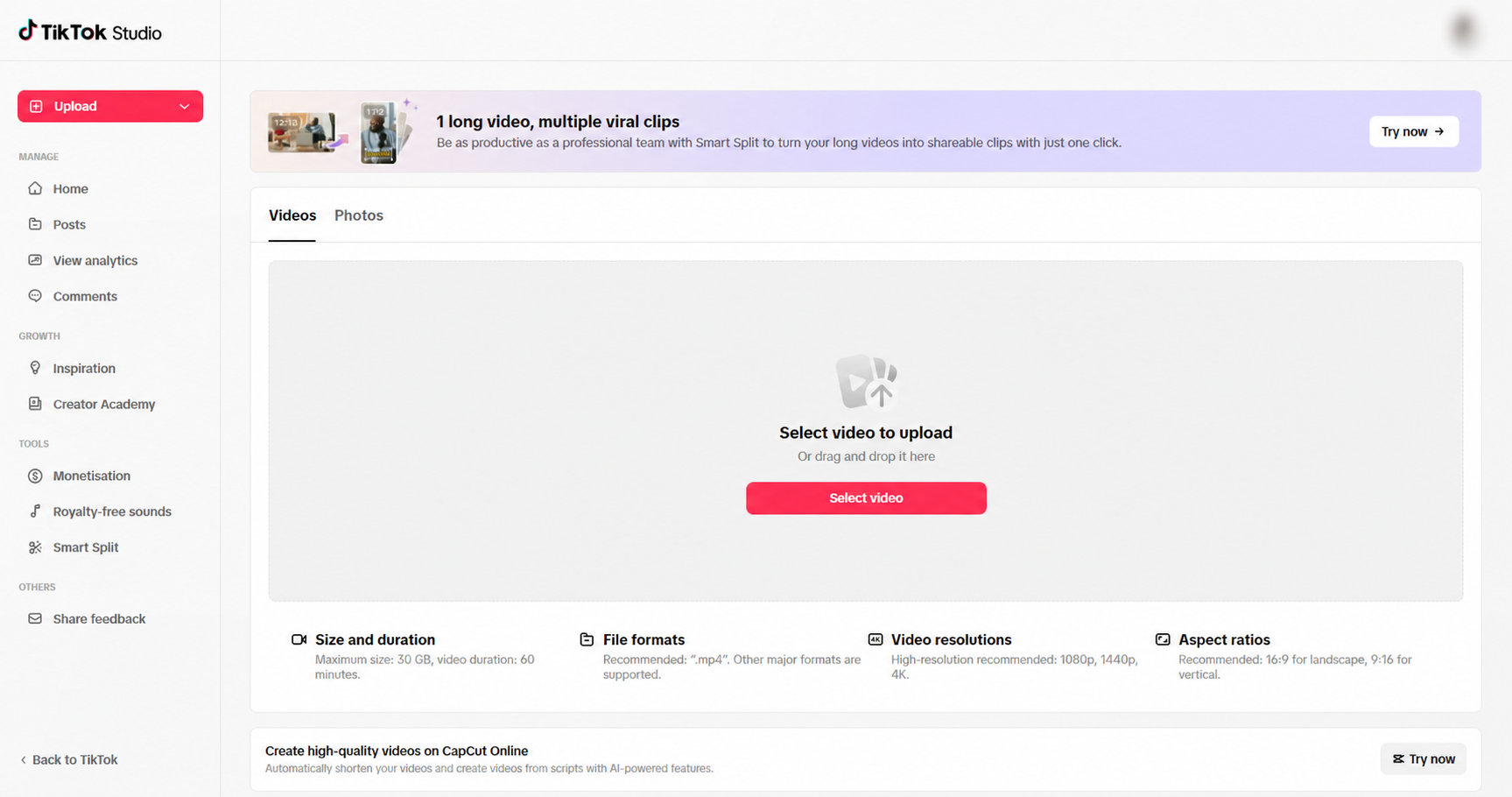 01 · UPLOAD
- 01STEP 1 OF 4
Open Studio on desktop.
Sign in on a desktop browser and open TikTok Studio → Upload. This is the delivery path for the FPSMethod master; keep your phone out of the transfer chain.
Direct link: tiktok.com/tiktokstudio/upload - 02STEP 2 OF 4
Select the final MP4.
Choose the file ending in _FPSMETHOD.mp4. Upload that download directly—do not send it through WhatsApp, Discord, iMessage, Drive preview, CapCut or another editor first.
The file card should show Uploaded before you continue.YOUR_EDIT_FPSMETHOD.mp4UPLOAD THIS EXACT DOWNLOAD - 03STEP 3 OF 4
Write the post, not the video.
Add the description and choose the cover. If exact image quality is the priority, avoid TikTok Studio’s Edit, Sounds and Text tools because they create another processing path.
Caption + cover are safe. A second video edit is not part of this workflow. - 04STEP 4 OF 4
Check quality, then post.
Confirm the upload completed, choose the audience and posting time, and keep High-quality uploads enabled when the control is available. Checks are optional. Review once, press Post, then leave the tab open for confirmation.
Never press Post while the upload bar is still moving.
Do less after export.
The clean workflow is short on purpose. Process once, download once, upload once.